You may want to edit your observation' geoprivacy setting. Below are tutorials for how to do it on various iNaturalist apps and the iNaturalist website.
Note that taxon geoprivacy can override your manually chosen geoprivacy setting. For example, if your Pangolin observation's geoprivacy is set to "open", the system will override your setting and publicly set it to "obscured" because all Pangolin observations on iNaturalist are obscured.
Finally keep in mind that some maps are cached for up to 15 minutes, meaning that in some cases it may take up to 15 minutes for a map to reflect the updated geoprivacy setting.
TABLE OF CONTENTS
- iNaturalist App for iPhones
- iNaturalist App for Android
- iNaturalist Classic for Apple Devices
- iNaturalist Website
iNaturalist App for iPhones
In either Standard or Advanced modes, you'll need to get to the observation's edit screen. This can be done from the observation's page.
- Tap on the observation you want to edit.
- Tap on the pencil icon in the upper right-hand corner of the screen to reach the Edit Observation screen.
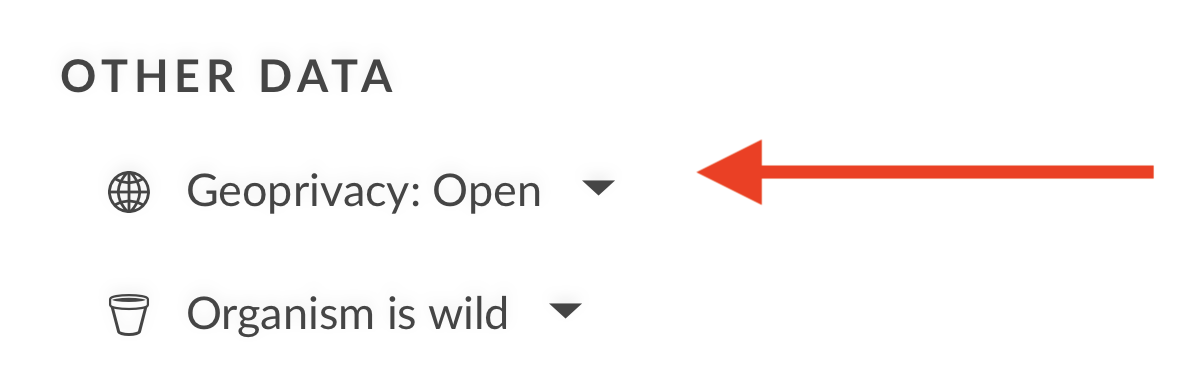
- Under Other Data, tap on "Geoprivacy".
- Choose the geoprivacy setting you want and tap "Confirm".
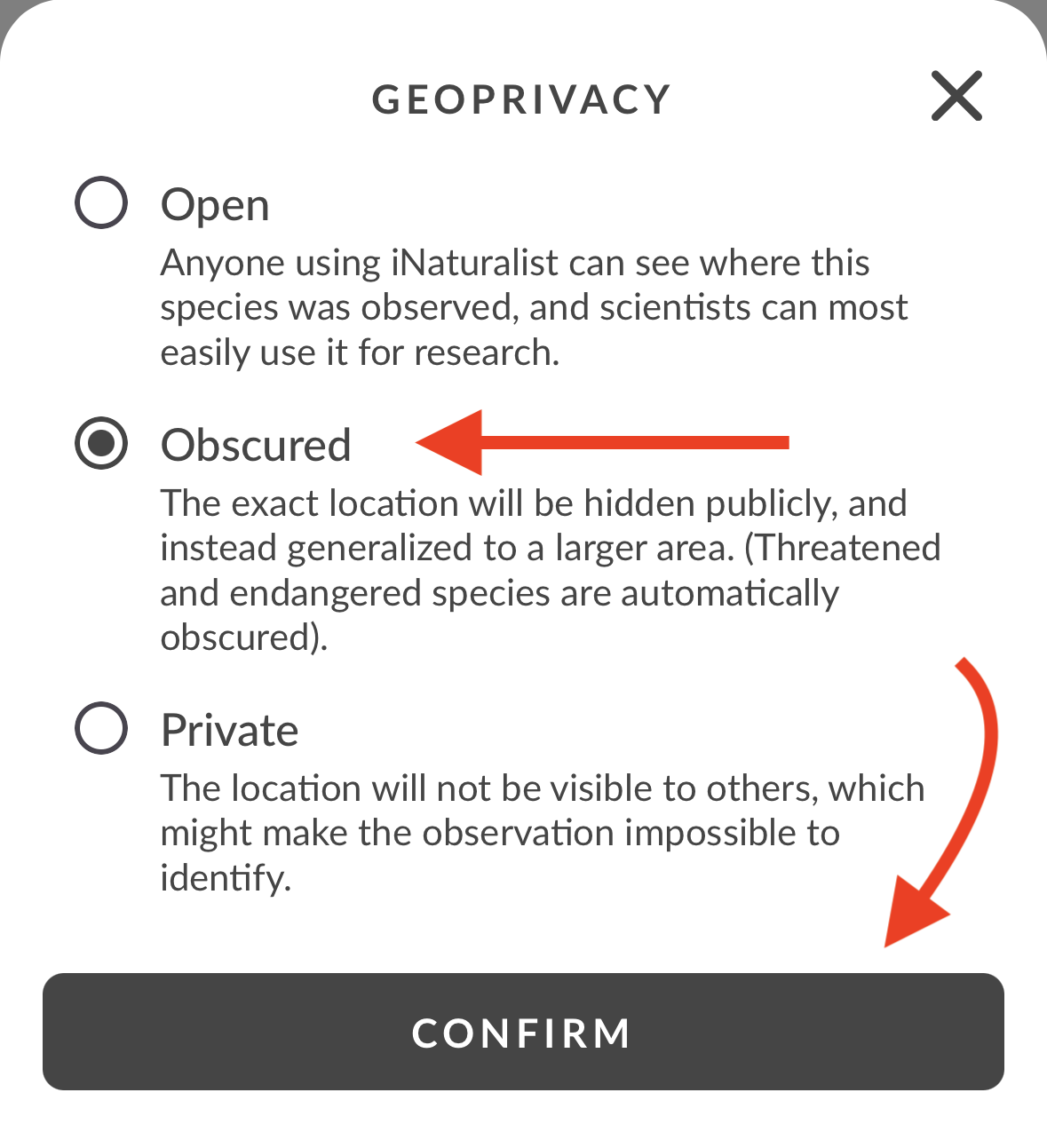
- Save the observation and upload it to iNaturalist.
iNaturalist App for Android
- Tap on the observation you want to edit.
- Tap on the pencil icon in the upper right-hand corner of the screen to reach the Details screen.
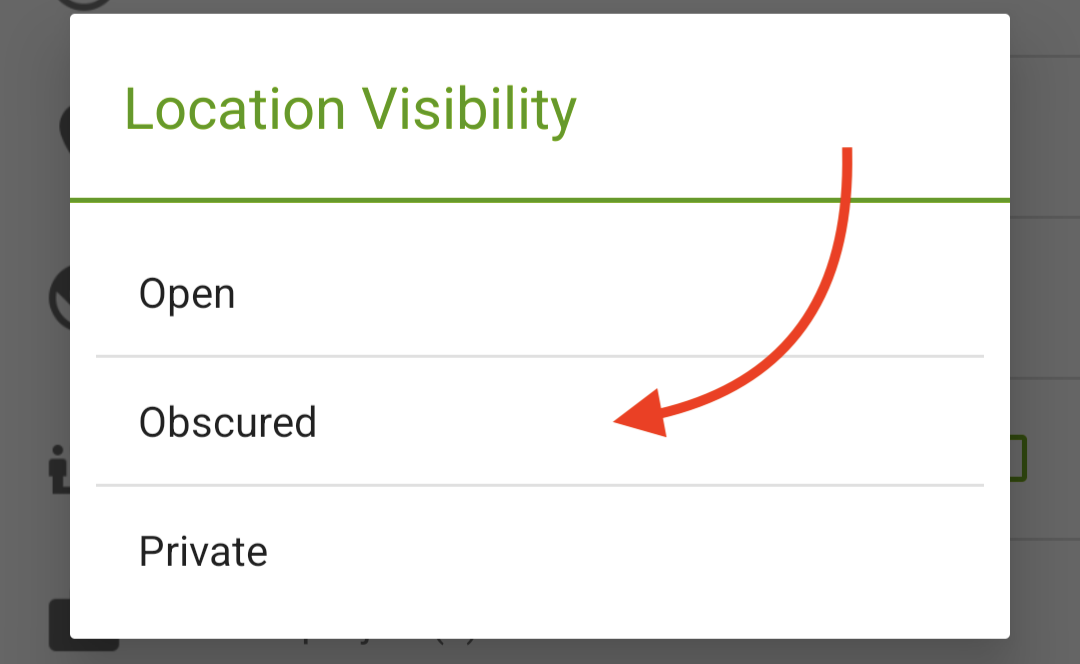
- Tap on "Location Visibility" and select the geoprivacy setting you want from the pop-up.
- Tap on the green checkmark button to save changes.
- If Automatic Upload is not turned on, you may need to manually upload the change.
iNaturalist Classic for Apple Devices
- Tap on the observation you want to edit.
- Tap on "Edit" in the upper right-hand corner of the screen to reach the Details screen.
- Tap on "Geoprivacy".
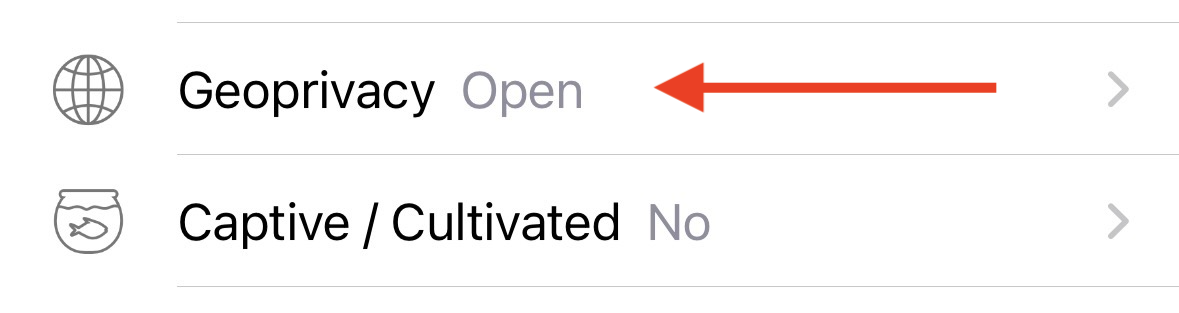
- Select the geoprivacy setting you would like then tap on "Done" in the chooser.
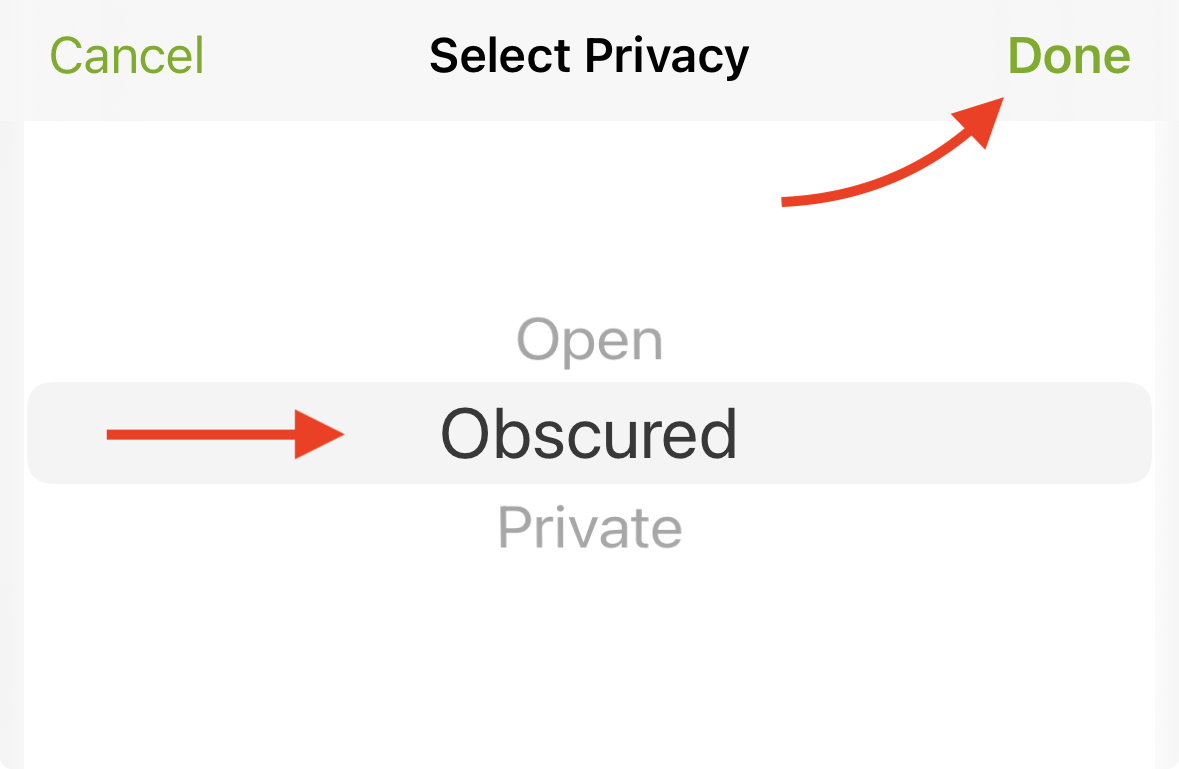
- Tap on "Done" in the upper right-hand corner of the observation to save it.
- If Automatic Upload is not turned on, you may need to manually upload the change.
iNaturalist Website
(Note that you can update the geoprivacy for multiple observations using the Batch Edit page.)
- Go the the page of the observation you want to edit.
- Click on the blue "Edit" button in the upper right-hand corner of the page to edit the observation.
- Under the map, next to "Change geoprivacy", select the geoprivacy setting you want for the observation.
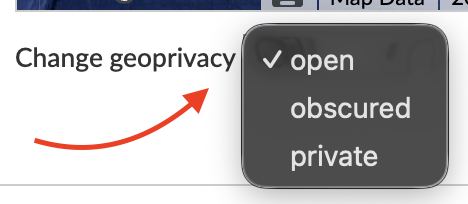
- Click "Save Observation".
Was this article helpful?
That’s Great!
Thank you for your feedback
Sorry! We couldn't be helpful
Thank you for your feedback
Feedback sent
We appreciate your effort and will try to fix the article