This page describes the Me screen when using the app in Advanced Mode. If you're using the app in Standard mode, the only major difference is the amount of information shown when in List view. You can switch between Standard and Advanced modes in the app's Settings screen.
The Me screen is where the app displays your own observations. Tap on any observation to go to its Details screen.
TABLE OF CONTENTS
Observation View and Sort Options
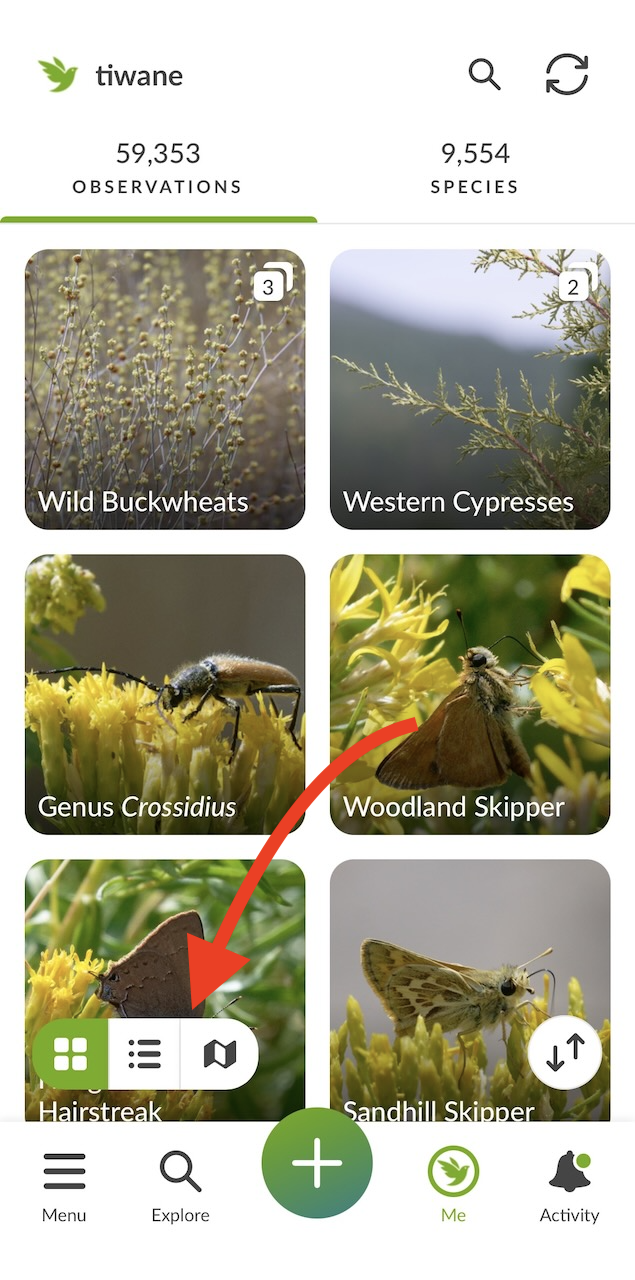
You have three view options for the Me screen: Grid, List, and Map. On the bottom left-hand corner is where you can switch between Grid, List and Map views, using this tool. In this example, Grid view is selected. Tap the middle icon for List view, and the right-most icon for Map view.

Here is what the Me screen looks like in Grid View, which emphasizes image display over information display. On the bottom left-hand corner is where you can switch between Grid, List and Map views.
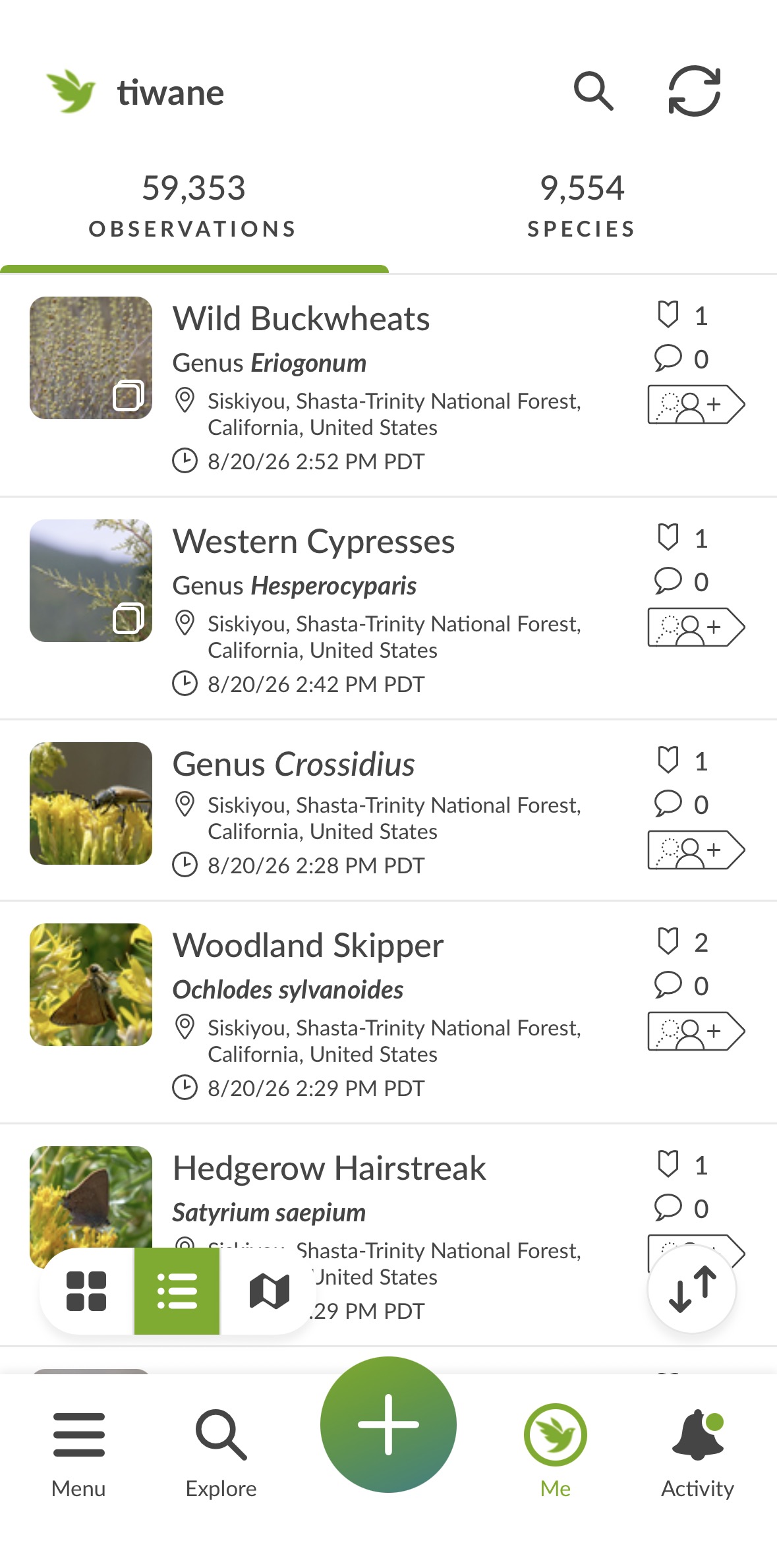
Here is what the Me screen looks like in List View, which emphasizes information display over image display:
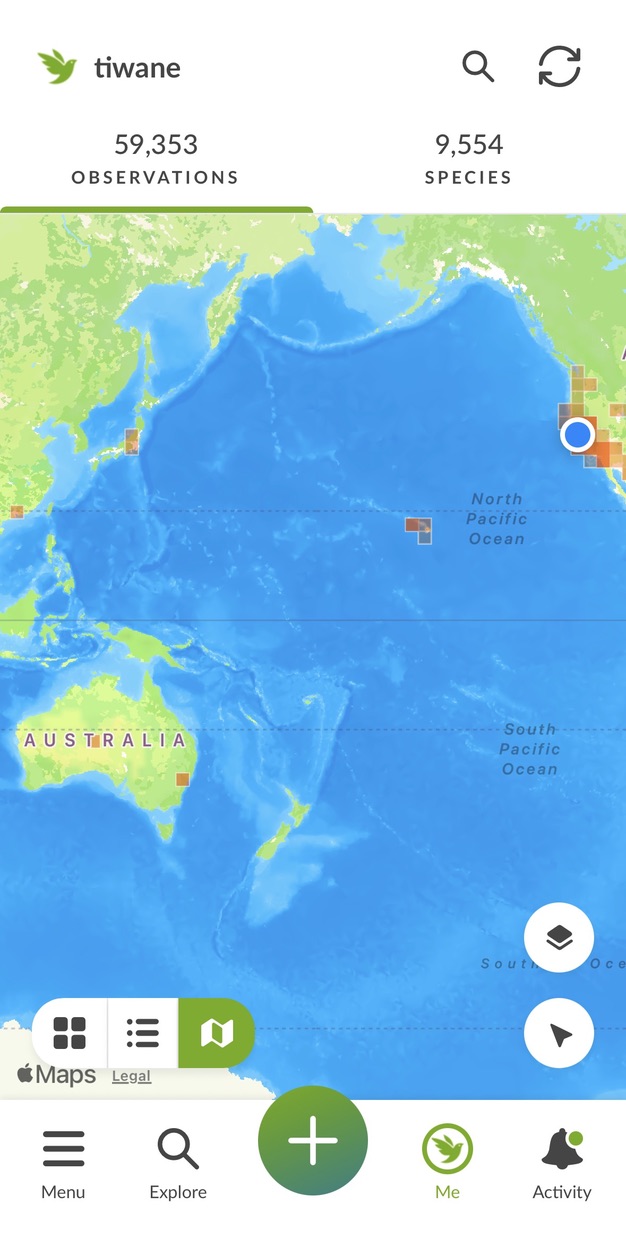
And here is what the Me screen looks like in Map view. You can use your fingertips to scroll and zoom the map. Tap on an observation to be taken to its Details page.
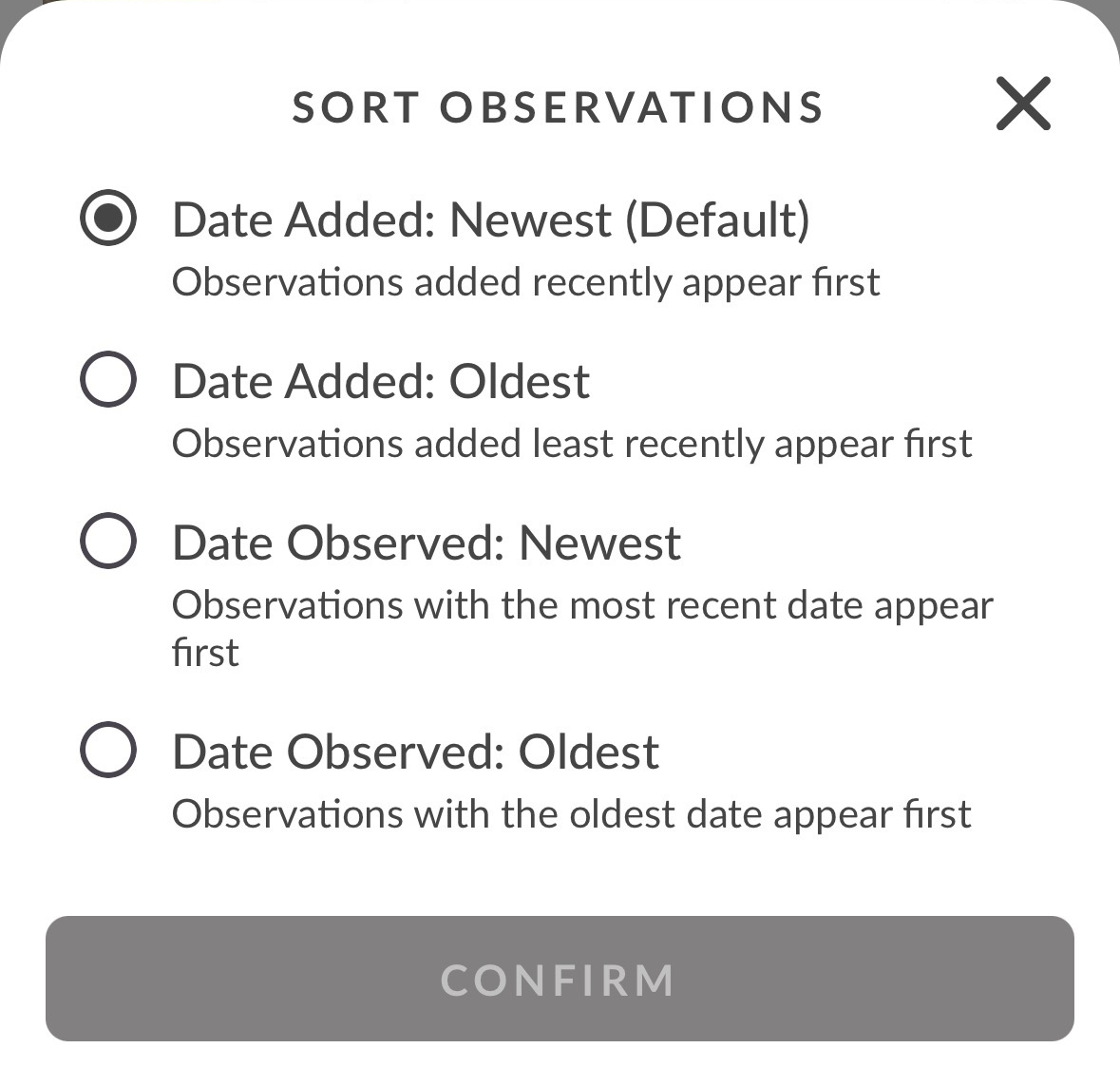
In Grid and List view, tap on the Sort icon (bottom right-hand corner, with one up and one down arrow) to see sort options:
Species View
Tapping on "[Number] Species" on the right-hand tab will take you to a view of the leaf taxa you have recorded. Mostly this will be species, but there may be some genera, families, classes, etc. For each taxon, the default taxon photo is displayed. Tapping on the center of each taxon will take you to all of your observations of that taxon. Tapping on the "i" icon in the upper right-hand corner of each taxon will take you to its taxon page in the app.
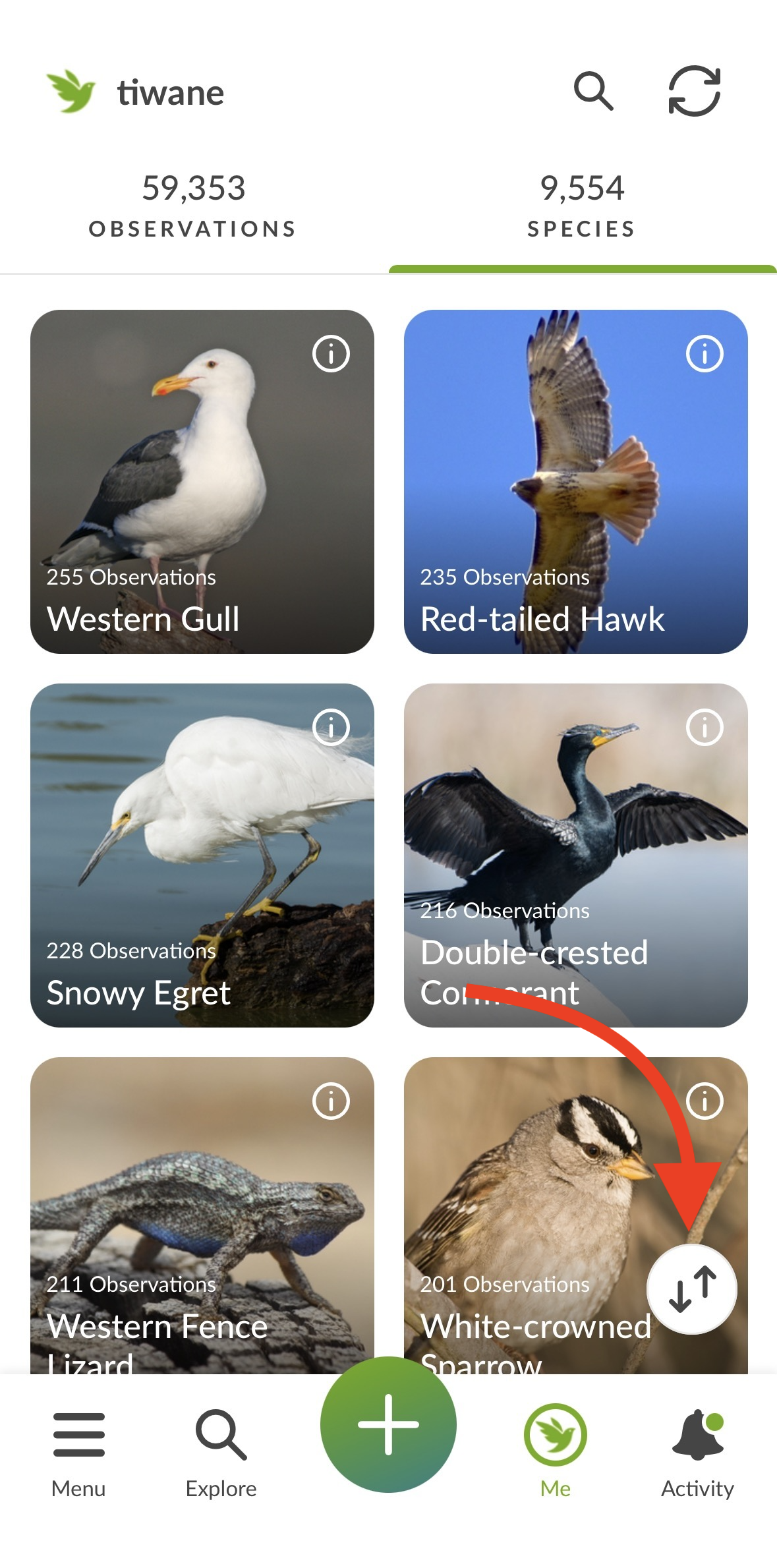
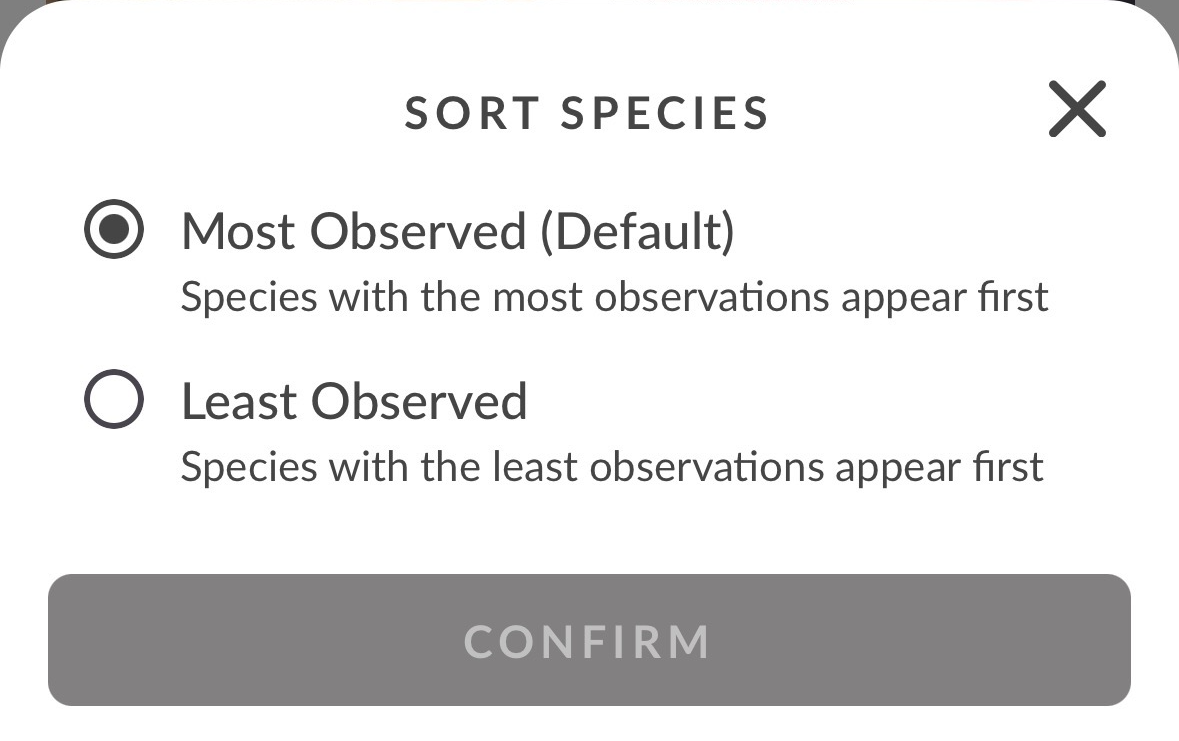
Tapping on the sort icon in the lower right-hand corner (see red arrow, above), will allow you to choose two sort options: from most-observed to least-observed (the default), and from least-observed to most-observed
Filtering Observations and Species
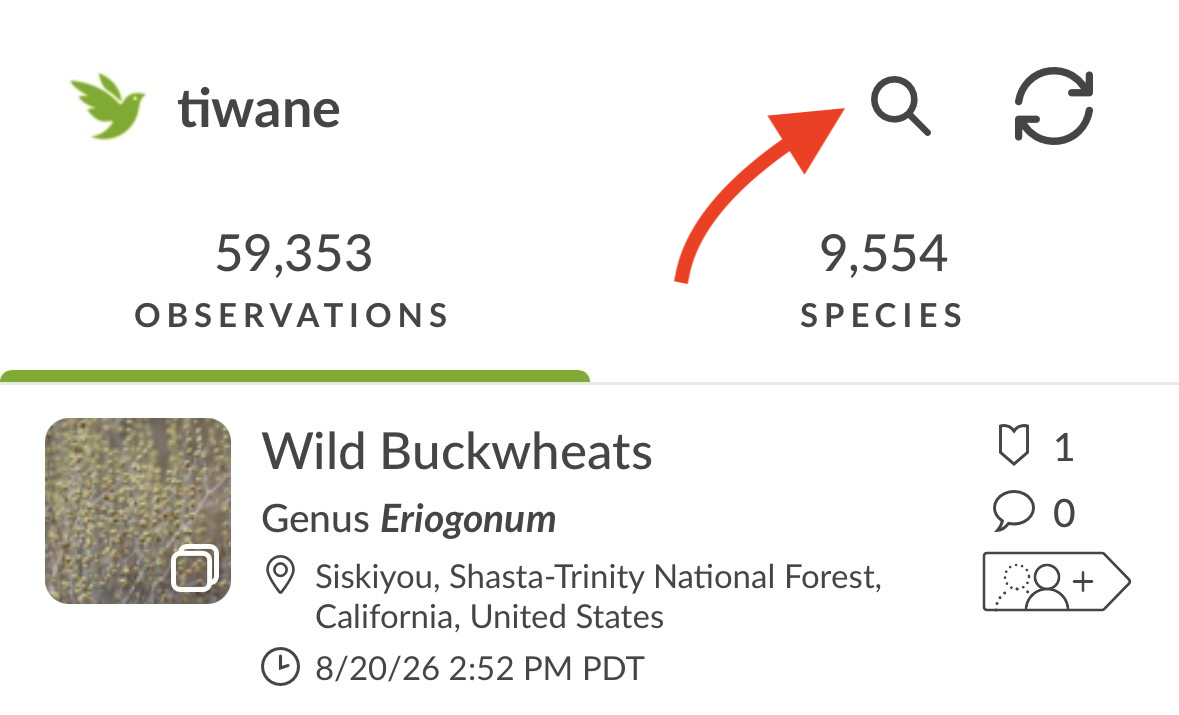
You can filter both your Observations and your Species tabs by taxon if you're connected to the internet. To do this, tap on the magnifying glass icon at the top of the screen:
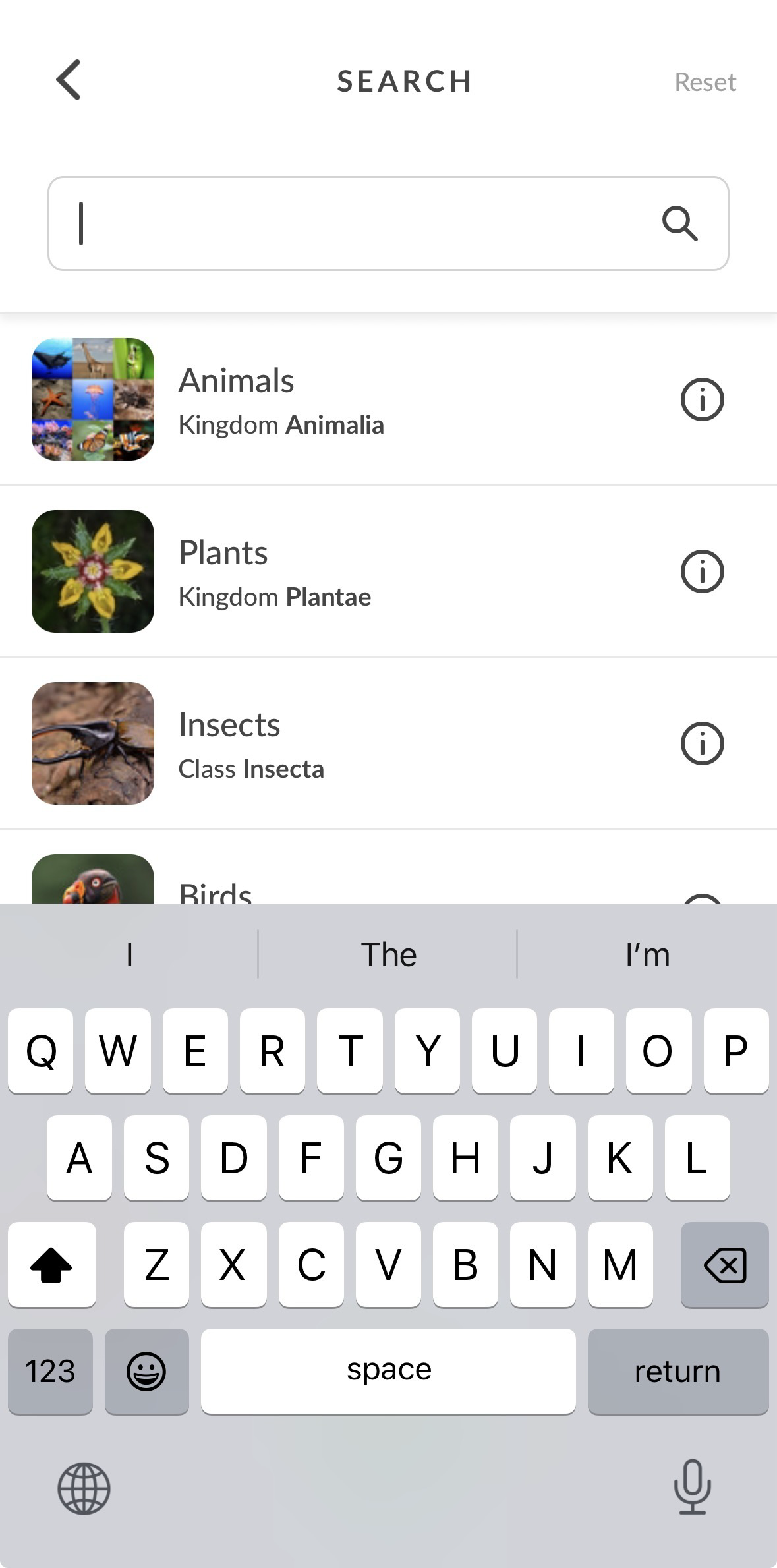
This takes you to a taxon search screen. You can choose a basic iconic taxon, like plants, insects, and fungi, or you can use the search field for something more specific.
Once you select a taxon, you'll be taken to your previous view, filtered by that taxon. For example, if you were on Map view and chose to filter by Sloths (Suborder Folivora), you would be taken to a map view that is zoomed in to all of your sloth observations:
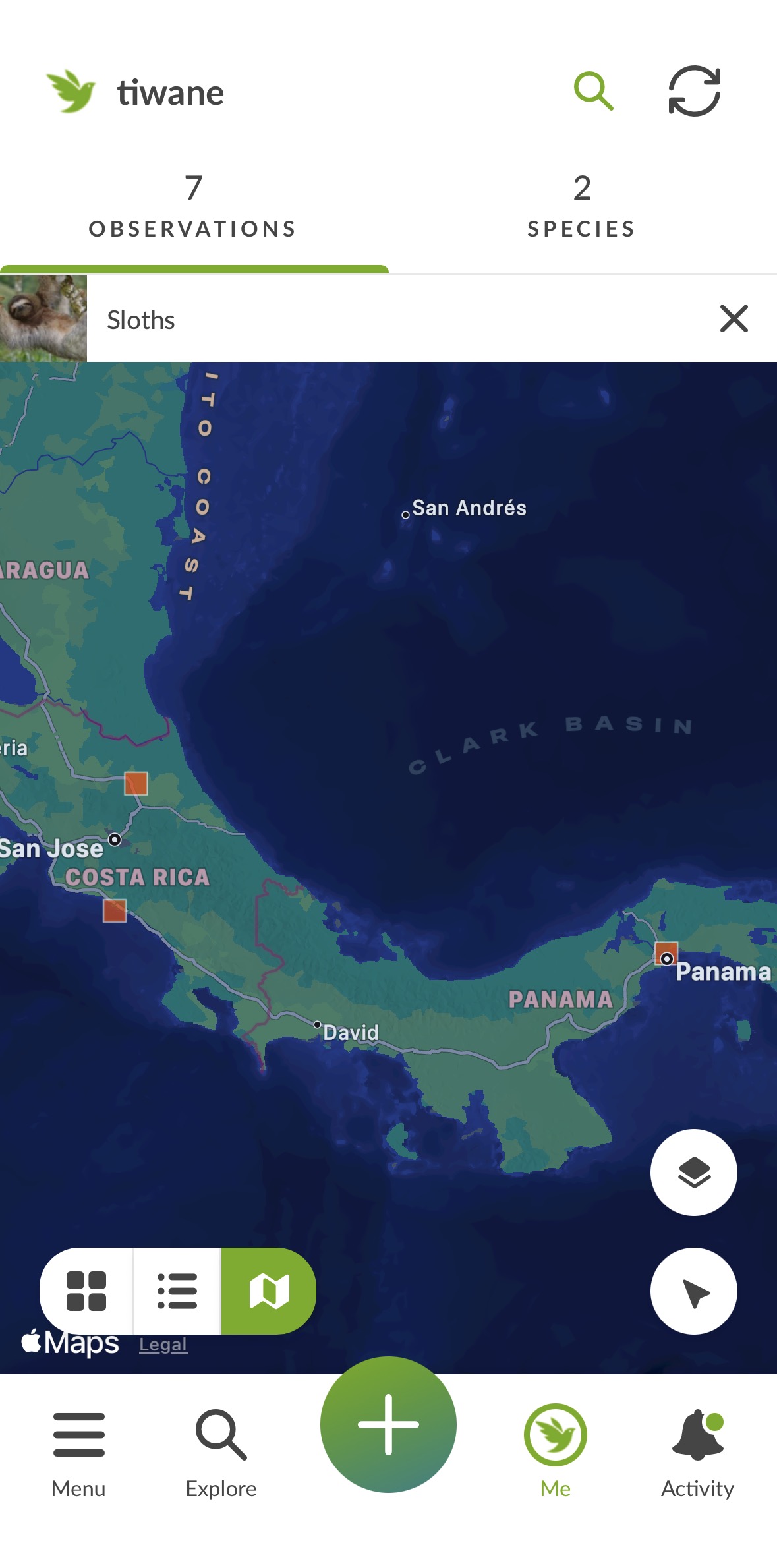
Note that the magnifying glass is now green, to show a filter is in use, and the taxon filter is shown above the map. You can tap on the "X" there to clear the filter. And you can also see these results in Grid and List views, or tap on the Species tab to see all species you've observed in this taxon. Tap on the magnifying glass icon to filter by a different taxon or reset your filters.
Was this article helpful?
That’s Great!
Thank you for your feedback
Sorry! We couldn't be helpful
Thank you for your feedback
Feedback sent
We appreciate your effort and will try to fix the article